
Quick verdict for this Trello review: it’s the easiest project management tool to pick up in five minutes, and the free plan is genuinely generous. The catch shows up once you need automation or reporting beyond the basics — the real cost of matching a $10-13/month competitor often lands at $15-25/user/month once you add Power-Ups.
Pricing checked against each vendor’s own pricing page on 26 August 2026. Vendors change plans often — confirm before you buy.
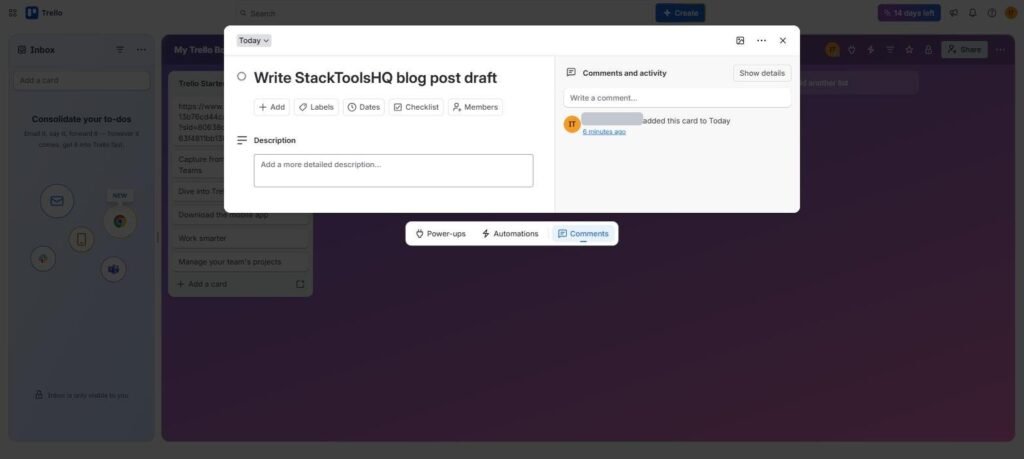
Table of Contents
At a Glance
- Best for: Small teams, content calendars, and visual thinkers who want simple Kanban boards
- Free plan: Unlimited cards, 10 boards per workspace, 10 collaborators, unlimited Power-Ups per board
- Standard: $5/user/month
- Biggest catch: No native task dependencies, and automation run limits push heavy users toward Premium
What Trello Actually Does
Trello is built around one idea: cards on a board, moved between columns. There’s no steep learning curve — new users create their first board and start organizing work within minutes, no tutorial required. Checklists, due dates, and color labels live directly on each card, which is enough structure for most small teams without ever feeling like overkill.
Trello Review: Pricing (2026)
| Plan | Price | Adds |
|---|---|---|
| Free | $0 | 10 boards, unlimited cards and Power-Ups per board |
| Standard | $5/user/mo | Unlimited boards, advanced checklists, custom fields |
| Premium | ~$10/user/mo | Timeline, Calendar, and Table views, AI features, dashboards |
| Enterprise | $17.50/user/month (billed annually) | SSO, org-wide permissions, advanced security |
The honest math: matching a $10-13/month competitor’s feature set often means adding $10-20/month in Power-Ups for time tracking, reporting, or Gantt-style views — pushing real cost to $15-25/user/month, more than tools that include those features natively.
Trello Review: Pros and Cons
Pros
- ✅ Fastest tool here to learn — no training needed
- ✅ Genuinely generous free plan
- ✅ Excellent for content calendars and editorial workflows
Cons
- ❌ No native task dependencies
- ❌ Boards get unwieldy once projects grow complex
- ❌ Automation run caps on Free/Standard tiers
Trello Review: Our Verdict
Trello earns its reputation as the easiest entry point into project management — ideal for small teams, content calendars, and anyone who thinks visually. It’s often the first tool a team uses before outgrowing it into something more structured. If you suspect you’ll need dependencies, deeper reporting, or heavier automation soon, compare it against ClickUp or our other free task tool picks before committing.
Frequently Asked Questions
Trello Pricing in 2026
| Plan | Price | What you get |
|---|---|---|
| Free | $0 | Unlimited cards, up to 10 boards per workspace, unlimited Power-Ups |
| Standard | $5/user/month | Unlimited boards, unlimited Power-Ups, advanced checklists |
| Premium | $10/user/month | Timeline, calendar, dashboard views, admin controls |
| Enterprise | $17.50/user/month (billed annually) | Organization-wide permissions, unlimited workspaces |
The free plan’s 10-board limit per workspace is the first wall most small teams hit — it sounds generous until a few months of active projects pile up. The 10-collaborator limit is the second: once a growing team crosses that headcount, upgrading becomes necessary regardless of which features they actually need.
What We Found Testing Trello
Creating a free account and a first board took under 5 minutes — no card required, and the interface needs zero explanation if you’ve ever used a physical whiteboard with sticky notes. Adding checklists, due dates, labels, and comments to a card all felt immediate, with no hidden menus.
The friction showed up once we tried to replicate a real small-team workflow: assigning recurring weekly tasks. Trello has no native recurring-task feature on any plan — you either duplicate cards manually or rely on a Power-Up (Standard plan or higher) or a third-party automation tool. For a team whose work is mostly one-off tasks and projects, this never comes up. For teams with weekly rituals (standups, content calendars, invoicing), it’s a real gap.
How to Share a Trello Board With Someone Who Doesn’t Have an Account
This comes up constantly for freelancers sharing progress with a client: open the board, click “Share” in the top-right, and either invite them by email (they’ll be prompted to create a free account to interact with cards) or use “Share board via link” and set the link permission to “Anyone with the link can view” for a read-only view that requires no account at all. For clients who only need to see status, not comment or move cards, the read-only link is the cleanest option — no signup friction on their end.
Who Should Avoid Trello
Teams that need built-in time tracking, Gantt charts, or recurring task automation without paying for a Power-Up or a second tool will hit walls fast — Trello’s board-and-card model is intentionally simple, and stretching it to cover heavier project management usually means bolting on extras that erode the simplicity that made it appealing in the first place.
Alternatives to Consider
If Trello’s board feels too simple once your team grows, our ClickUp vs Notion comparison covers two more full-featured options, and our dedicated ClickUp review looks at the closest direct upgrade path from a board-only tool. For a closer look at how Trello specifically stacks up against a heavier PM tool, see our ClickUp vs Asana comparison.
Does Trello work well for non-technical teams?
Yes — this is Trello’s strongest use case. The card-and-board metaphor needs no training, which makes it a common first project management tool for teams coming from spreadsheets or email threads.
Can I use Trello for more than one client or project at once?
Yes, within the 10-board free-plan limit per workspace. Freelancers juggling several clients often hit that ceiling within a few months and either archive completed project boards or upgrade to Standard.