
Quick verdict on ClickUp vs Notion: ClickUp wins for task execution and project management. Notion wins for docs, wikis, and flexible knowledge bases. Most freelancers and small teams outgrow one of them within a few months — this guide tells you which one you’ll actually keep using. If you want the full setup, here is how I organize my work in Notion, step by step.
Pricing checked against each vendor’s own pricing page on 26 August 2026. Vendors change plans often — confirm before you buy.
This post contains affiliate links — if you sign up through them, we may earn a commission at no extra cost to you. See our Affiliate Disclosure and Methodology for details.
At a Glance
Pick ClickUp if…
- You need task management, sprints, and time tracking
- Your team wants automation without setup work
- Budget matters — it’s roughly 30% cheaper
Pick Notion if…
- You live in docs, wikis, and connected databases
- You want total flexibility to build your own system
- You’re mostly solo or a very small team
Table of Contents
ClickUp vs Notion: Core Philosophy
The ClickUp vs Notion decision comes down to one question: are you managing tasks, or are you managing knowledge? ClickUp was built from day one as a project management tool — subtasks, dependencies, Gantt charts, and time tracking all come ready to use. Notion was built as a flexible docs-and-database editor; you can build project management inside it, but you’re assembling it yourself out of pages, databases, and formulas.
Neither approach is wrong. It genuinely depends on whether your daily bottleneck is “what do I need to do today” (ClickUp’s strength) or “where did we write that down” (Notion’s strength).
Pricing Comparison (2026)
| Plan Tier | ClickUp | Notion |
|---|---|---|
| Free | Unlimited members, 100MB storage | Individuals only, 5MB uploads |
| Mid-tier | $7/user/mo (Unlimited) | $10/user/mo (Plus) |
| Business tier | $12/user/mo | $18/user/mo |
| AI add-on | Included free on paid plans | $10/user/mo extra |
ClickUp is consistently 30-40% cheaper than Notion at equivalent tiers, and its AI (ClickUp Brain) is bundled into paid plans rather than a separate add-on. If AI features matter to your workflow, that gap widens further in ClickUp’s favor.
Where ClickUp Wins
- Native time tracking — Notion has none built in
- Ready-made project views — Gantt, workload, sprints work out of the box
- Automation — 50+ triggers and 100+ actions with no setup
- Free plan for teams — unlimited members at $0, Notion’s free tier is solo-only
Where Notion Wins
- Database flexibility — build custom wikis, CRMs, and knowledge bases from scratch
- Writing and docs experience — a genuinely better editor for long-form content
- Notion AI’s Q&A — search and ask questions across your entire workspace
- Aesthetic control — pages feel more like a personal wiki than a task board
The Honest Downsides of Each
ClickUp’s downside: the sheer number of views and settings can overwhelm new users in week one. It’s also a weaker pure writing/docs tool than Notion if long-form content is your main need.
Notion’s downside: you have to build project management yourself — recurring tasks need manual formulas, and there’s no native time tracking. Performance can also slow down once a workspace grows past tens of thousands of pages.
ClickUp vs Notion: Our Verdict
If you’re a freelancer or small team whose main pain point is “keeping track of what needs to get done,” pick ClickUp — it’s cheaper, more complete for task management out of the box, and the free plan supports your whole team. If your main pain point is “we have no central place for our knowledge and docs,” pick Notion — it’s a better writing and database tool, even if you’ll need to build your own task system inside it.
Some teams end up running both: ClickUp for execution, Notion for the wiki. That’s a valid setup too, just budget for two subscriptions instead of one. For a deeper look at ClickUp on its own, see our full ClickUp review.
Frequently Asked Questions
Can I use ClickUp and Notion together?
Yes, many teams do — ClickUp for tasks and deadlines, Notion for documentation and wikis. It means paying for two tools, so only do this if each is solving a real, distinct problem.
Which is better for a solo freelancer?
Notion’s free plan is built for individuals and is genuinely great for solo use. ClickUp’s free plan works too and adds task-management structure, which matters if you’re juggling multiple clients with deadlines.
Does Notion have project management features?
Yes, but you build it yourself using databases and views. It works, but takes more setup time than ClickUp’s ready-made project views.
Is ClickUp or Notion better for AI features?
ClickUp Brain is included free on paid plans. Notion AI costs $10/user/month extra, but its cross-workspace Q&A search is a genuinely different capability worth considering for large knowledge bases.
Real-World Setup Experience
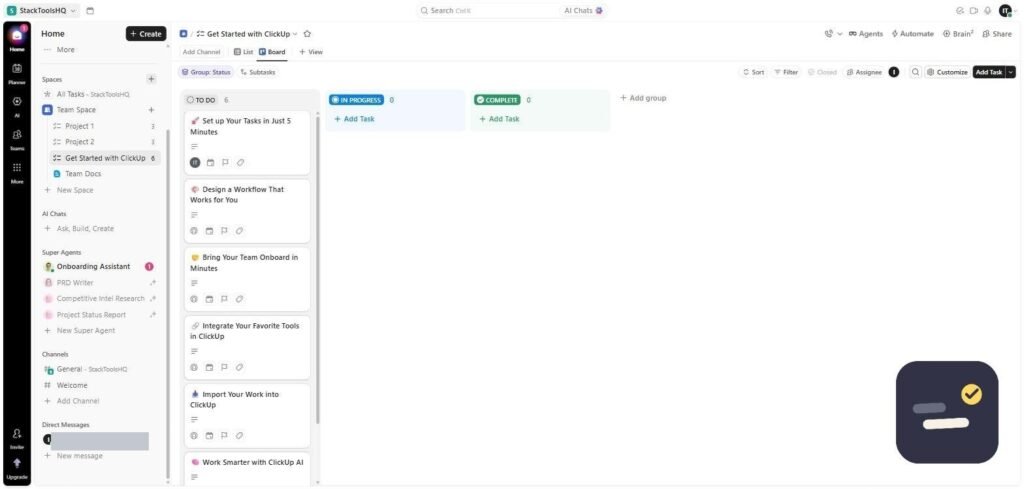
When we set up ClickUp for a test project, initial onboarding — creating a Space, a List, and the first few tasks — took about 20 minutes. Actually getting comfortable with the sidebar, the different view types (List, Board, Calendar, Gantt), and where automations live took closer to two hours of clicking around. ClickUp Brain, the built-in AI assistant, ended up being the fastest way to understand the interface: asking it directly how to set up a recurring task got faster answers than digging through ClickUp’s own help docs.
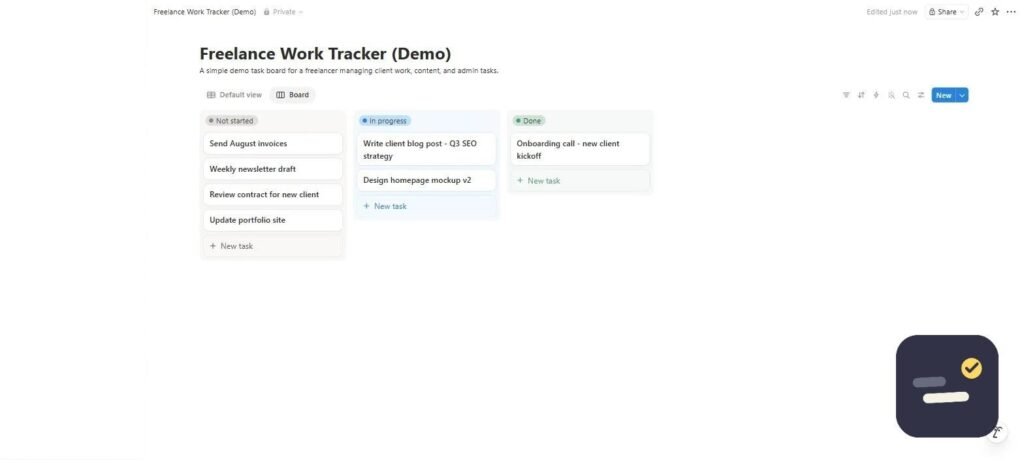
Notion’s learning curve runs the opposite direction. The editor itself — typing “/” to insert a block, dragging to reorder — feels intuitive within minutes. But building anything resembling project management (a task database with statuses, due dates, and a board view) means constructing it yourself from a blank database, which took roughly 30-40 minutes for a basic setup even with prior database experience. There’s no wrong turn to make, but there’s also no default to fall back on.
The practical takeaway: ClickUp front-loads complexity into the interface but gives you a working project management system immediately. Notion front-loads complexity into decisions, but the tool itself is simpler to touch on day one.
Who Should Avoid Each Tool
Who should avoid ClickUp
If your team’s main need is writing and documentation — meeting notes, internal wikis, a knowledge base people enjoy reading — ClickUp Docs exists, but it’s a secondary citizen structured more like an outliner attached to tasks than a standalone writing tool. Teams that tried using it as their primary wiki tend to end up frustrated with the formatting options.
Who should avoid Notion
If you need to see, today, exactly what’s overdue, what’s blocked, and who’s behind — without building that view first — Notion isn’t the tool. Its lack of native time tracking and recurring-task automation means solo operators managing several client deadlines usually end up bolting on a second tool, or building elaborate formula-based workarounds, within a few months.
Alternatives to Consider
ClickUp and Notion aren’t the only two options. If ClickUp feels over-built for what you need, our Trello review covers a simpler board-only structure that’s easier to onboard a small team onto in a single afternoon. For a closer head-to-head on task management specifically, see our ClickUp vs Asana comparison. And if the real question is Notion versus a dedicated tool rather than Notion versus ClickUp, our guide on what a CRM actually does is worth a look before building one from scratch in Notion.
How long does it actually take to switch from one to the other?
Migrating existing tasks from ClickUp to Notion (or vice versa) is mostly manual — neither has a one-click native import from the other. For a small team with under 200 tasks, budget half a day. For anything larger, expect to rebuild your structure rather than migrate it exactly.
Does either tool work well offline?
Both are primarily cloud-based with limited offline support through their desktop and mobile apps — changes sync once you’re back online, but neither is built for extended offline use the way a local-first tool would be.

Written by Ivan T.
Founder of StackToolsHQ. Writes hands-on reviews and comparisons of productivity and AI tools for freelancers, small teams, and remote workers. More about this site.