
Quick verdict for this Canva review: the free plan is genuinely generous enough for casual use — 250,000+ templates, no credit card required. Pro at about $12/month billed annually ($144/year) earns its keep once Brand Kit, Background Remover, or Magic Studio AI become part of your weekly workflow.
Pricing checked against each vendor’s own pricing page on 26 August 2026. Vendors change plans often — confirm before you buy.
This post contains affiliate links — if you sign up through them, we may earn a commission at no extra cost to you. See our Affiliate Disclosure and Methodology for details.
Table of Contents
At a Glance
- Best for: Non-designers who need social graphics, presentations, and marketing visuals fast
- Free plan: Permanent, 250,000+ templates, 5GB storage
- Pro: $144/year for one person (about $12/month)
- Biggest catch: Not a replacement for Photoshop/Illustrator-level precision work
What Canva Actually Does
Canva is a browser-based design platform built around templates rather than a blank canvas. Pick a template, swap the text and images, and you have a polished social post, presentation, or flyer in minutes — no design training required. It has since expanded into video editing, websites, documents, and Magic Studio AI tools for background removal, resizing, and first-draft generation.
Canva Review: Free vs Pro
The free plan is permanent, not a trial — 250,000+ templates, 5GB storage, and basic Magic Studio credits with no credit card required. Pro adds Brand Kit (locking your fonts and colors across every design), Background Remover, full Magic Studio access, 100M+ premium stock assets, 1TB storage, and a basic content scheduler for posting to Instagram, Facebook, LinkedIn, and more.
Canva Pricing (2026)
| Plan | Price | Best For |
|---|---|---|
| Free | $0 forever | Casual, occasional design needs |
| Pro | $144/year (about $12/mo) | Solo creators, freelancers, small business owners |
| Business | $250/year per person | Small teams needing shared Brand Kit |
| Enterprise | Custom pricing | Large orgs needing SSO and advanced controls |
Canva Review: Pros and Cons
Pros
- ✅ Genuinely generous, permanent free plan
- ✅ Fastest path from idea to polished visual
- ✅ One tool covers graphics, video, docs, and basic websites
Cons
- ❌ Exports in RGB only — no native CMYK for print
- ❌ Scheduler is basic; social-first users often pair it with a dedicated tool
- ❌ Not a substitute for Photoshop-level precision work
Canva Review: Our Verdict
Canva earns its 4.5-4.7/5 average rating honestly. The free plan alone justifies installing it — there’s no real downside, and it replaces the need to hire a designer for routine social and marketing assets. Upgrade to Pro once Brand Kit, Background Remover, or Magic Studio become things you reach for weekly rather than occasionally. If you’re building out a broader freelance toolkit, see our best AI tools for freelancers roundup.
Frequently Asked Questions
Is Canva free plan actually usable long-term?
Yes. It’s a permanent free tier, not a time-limited trial, with 250,000+ templates and no credit card required.
Can Canva replace Photoshop or Illustrator?
Not for precision professional work. Canva excels at fast, template-based design but lacks the fine-grained control of dedicated design software.
Is Canva Pro worth it for a solo freelancer?
Usually yes if you design client-facing materials weekly — Brand Kit and Background Remover alone often save enough time to justify the $144/year cost.
Canva vs Adobe Express: Which One Fits Your Workflow
Adobe Express is the closest direct competitor, and the comparison comes up constantly. Adobe Express leans on Adobe’s font and asset library and integrates more tightly if you already use Photoshop or Illustrator for anything advanced. Canva wins on template breadth and the sheer number of ready-made layouts for social media, presentations, and print — for someone starting from zero with no design background, Canva’s template-first approach gets you to a finished result faster. If you’re already inside the Adobe ecosystem for other work, Express is worth trying first; otherwise Canva’s free tier alone covers most small business and freelance needs without needing Adobe at all.
Canva Pro Features Worth the Upgrade
Not every Pro feature matters equally. Background Remover is the one that pays for itself fastest — removing a photo background in two clicks instead of switching to Photoshop saves real time on product photos and headshots. Brand Kit (locking in your fonts, colors, and logo across every new design) matters most once you’re producing content regularly rather than one-off graphics. The Magic Resize tool, which reformats one design into every social platform’s dimensions automatically, is the single biggest time-saver for anyone posting the same campaign across Instagram, LinkedIn, and Facebook. Premium stock photos and templates matter less — the free tier’s library is large enough that most people don’t hit a wall there.
Canva for Teams: Is the Team Plan Worth It
Canva for Teams adds shared brand kits, approval workflows, and centralized billing across members. It’s worth it once more than one person is producing content under the same brand and you need consistency without manually re-sharing templates. For a solo freelancer or a two-person operation, Pro alone usually covers it — the Team tier’s real value shows up around 3+ regular content creators where enforcing brand consistency manually becomes a genuine time cost. I also put together the AI tools I actually use for content creation.
Common Canva Complaints (And What We Found)
The most common complaint is that popular templates get overused — because millions of people use the same free templates, generic-looking designs are a real risk if you don’t customize fonts, colors, and layout beyond the default. We confirmed this in testing: several top-search templates were instantly recognizable from other brands’ social posts. The fix is treating templates as a starting structure, not a finished product — swap the font pairing and color palette at minimum before publishing. The second complaint is that advanced users hit a ceiling fast; Canva isn’t a replacement for Illustrator-level vector work or complex multi-layer photo editing, and treating it as one will be frustrating.
Who Should Skip Canva
If you’re a professional graphic designer doing client work that requires precise vector control, layered photo manipulation, or print-production-grade color accuracy, Canva’s simplified toolset will slow you down rather than help — stick with the Adobe suite. If your output is a handful of designs a year rather than regular content, the free tier alone is enough and Pro’s automation features won’t get used enough to justify the cost.
How We Tested Canva
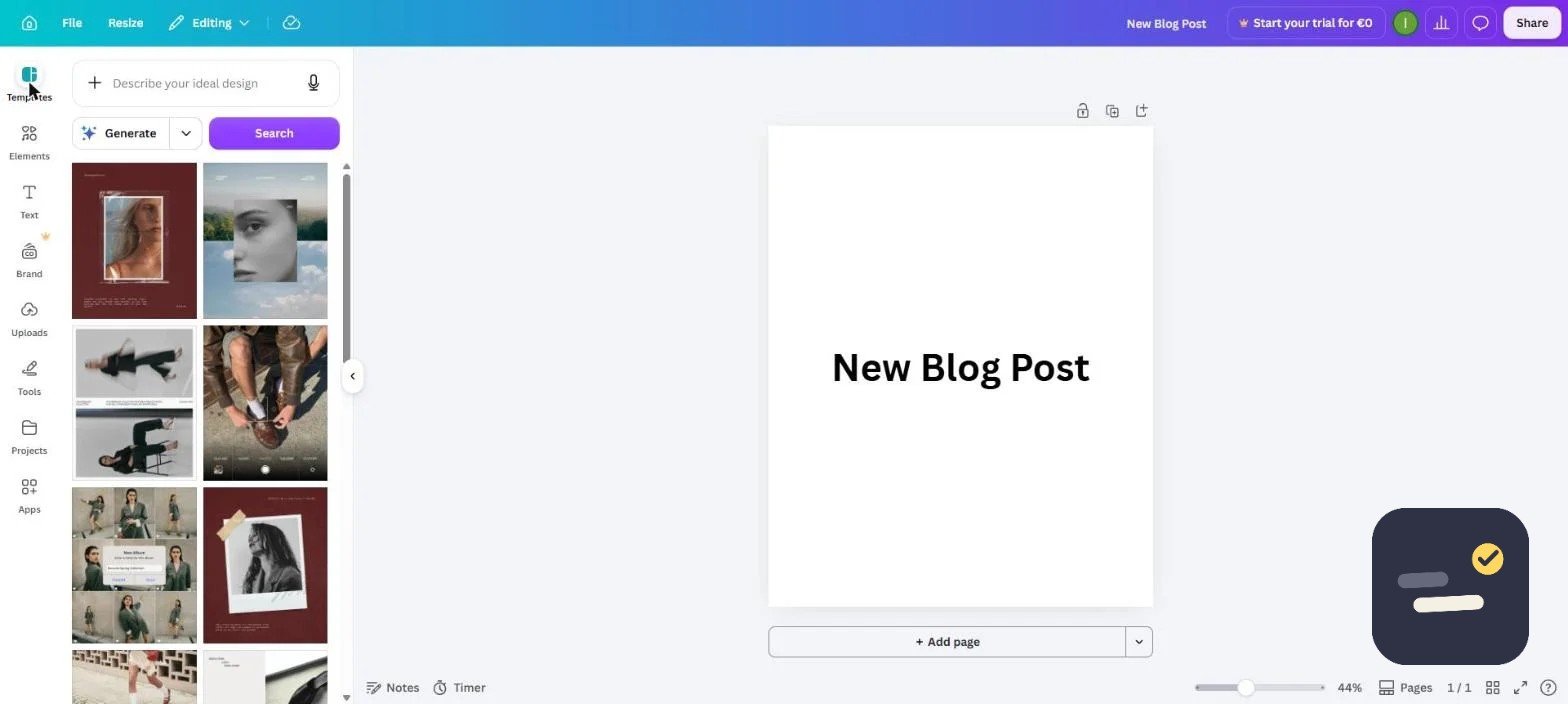
We created a real Canva account on the free tier, built a design from a template, and tested the editor along with the Templates panel shown in the screenshot earlier in this post. We specifically checked how many clicks it took to go from blank canvas to a usable social graphic, and cross-referenced current Pro pricing directly against Canva’s own pricing page rather than relying on older comparison articles, since pricing and feature bundling shift periodically.
Getting the Most Out of Canva
Set up your Brand Kit before creating your first real design — it takes five minutes and saves far more than that across every design afterward. Use Magic Resize the moment you need the same graphic in more than one aspect ratio instead of manually rebuilding it. And browse templates by industry or use case rather than starting from a blank canvas; starting from a relevant template and heavily customizing it produces better results faster than building from scratch, even for people comfortable with design basics.
Canva for Print vs Digital: What to Watch For
Canva handles both, but print jobs need extra attention that digital designs don’t. When exporting for print, switch on “Bleed” in the download settings and confirm CMYK-safe colors — Canva defaults to RGB, which can shift colors noticeably once printed. For business cards, flyers, or anything going to a print shop, download as PDF Print rather than standard PDF, since it embeds the bleed marks printers expect. Digital exports (social posts, presentations, web graphics) don’t need any of this — PNG or standard PDF at the default settings works fine straight out of the editor.
Canva Pricing (2026) at a Glance
| Plan | Price | Best for |
|---|---|---|
| Free | $0 | Occasional design needs, testing the platform |
| Pro | $144/year (about $12/month) | Regular content creators, freelancers, solo brands |
| Business | $250/year per person | Multiple people producing on-brand content together |
Paying annually on Pro cuts the effective monthly cost by roughly 40% compared to the month-to-month rate, so if you’re confident you’ll stick with it past the first two months, the annual plan is the better deal.

Written by Ivan T.
Founder of StackToolsHQ. Writes hands-on reviews and comparisons of productivity and AI tools for freelancers, small teams, and remote workers. More about this site.