
Most of what breaks when you duplicate a Notion template is invisible until you put real data in it. Relations can stay pointed at the original creator’s databases, boards go blank the moment you delete the sample rows, totals stop adding up, and a filtered view can quietly keep showing somebody else’s records. None of that shows on the page you are looking at before you buy.
I copied a four-database client system I had built and checked it line by line, in my own Notion account, the same way a buyer receives it. The parts every guide warns about held: relations and linked views both followed the copy. Two things nobody warns about did not. A chart refused to display on a published page on the free plan, and an intake form collected one field out of three. Below is what to check, in the order worth checking it, and what each check costs you in time.
Table of Contents
What happens when you duplicate a Notion template
A template is not one object. It is a page, a set of databases, relations between those databases, and views with filters that point at specific rows. When you press Duplicate, Notion rebuilds all of it in your workspace and has to rewire every internal reference along the way.
Two of those references cause most of the trouble.
Relations. A relation is a pointer from a row in one database to a row in another, such as an invoice pointing at the client it belongs to. If the copy’s invoices still point at the original’s clients, your copy looks correct and is wired to data you cannot edit and did not create.
Linked views. A linked view is a view of a database placed on a different page. It holds no data of its own; it points at the source. This is how client portals and dashboards are built, and it is the single most likely thing to survive duplication in name only. The page appears, and the rows are somebody else’s.
Neither failure announces itself. Both look like a working page.
The five checks, and what each one costs
You do not need all five every time. The first two take a minute together and catch the majority of what goes wrong.
| Check | What it catches | Time |
|---|---|---|
| Delete the sample rows | Empty boards, hidden groups, views that go blank | 1 minute |
| Open a linked row | Relations still pointing at the original | 1 minute |
| Prove one filter wrong | Filters that read correctly and return the wrong rows | 3 minutes |
| Read the numbers by eye | Broken rollups, missing sum footers, wrong number formats | 5 minutes |
| Compare database IDs | Linked views pointing at the source instead of the copy | 5 minutes |
Check 1: delete the sample data first
Do this before anything else, and before you enter a single real record.
A lot of templates only look finished while the example rows are in place. Board views hide empty groups by default in Notion, so a board with five sample tasks looks organized and the same board with zero tasks can render as a blank rectangle with no columns at all. The structure you were sold is not there. The sample data was drawing it for you.

Deleting the examples also shows you which views were built on filters that only make sense for the creator’s data, and whether any percent-complete formula falls over when it has nothing left to divide.
Check 2: open a linked row
Pick any row that references another database, such as a project that names a client or a task that names a project, and click through to it.
You want to land on a page inside your own workspace. If it opens something you did not create, or if Notion asks you for access, the relation followed the original rather than the copy.
This takes a few seconds and it is the difference between a system that is yours and a system that is a window onto somebody else’s.
Check 3: prove a filter wrong on purpose
A filter can read perfectly in its settings panel and still return the wrong rows. Reading the configuration tells you what was intended, not what happens.
So test it backwards. Take a view that is supposed to show only unpaid invoices, find a row it is showing, and mark that row paid. The row should disappear. Change it back and it should return.
That is the whole test, and it is worth doing on every view a template advertises as the one you open every morning. In the system I tested, I set an invoice to Paid and watched the client’s outstanding balance drop to zero, then set it back to Sent and watched it climb back to $2,100. Numbers that move are numbers that are calculated. Numbers that sit still are decoration.
Check 4: read the numbers with your eyes
This one surprises people who try to automate the check. Notion’s API cannot read the result of a rollup or a formula; it returns an internal reference instead of the value. It also cannot read the sum footer under a table, or the left-to-right order of columns on a board.
Which means those parts of a template can only be verified by looking at them. Open the copy and compare each number against what it is supposed to be.

| What to read | What correct looks like |
|---|---|
| Rollup columns | Match the rows they claim to summarize, not a stale number |
| Percent columns | Display as 50%, not 0.5. The number format is a separate setting from the formula |
| Sum footers | Present at all. They are set per view and do not always survive |
| Date-based columns | Count only when they should, not on every row |
The percent one is worth dwelling on. A formula that divides done tasks by total tasks returns 0.5, and it is a second, separate setting that turns 0.5 into 50%. The formula can be perfect and the column still reads like a rounding error.
Check 5: compare the database IDs
This is the technical one, and it is the only way to be certain about linked views.
Every database in Notion has an internal identifier. In a clean duplicate, every database gets a new one. If a view on your copy still refers to the original’s identifier, that view is pointing at the source and will keep showing the original’s rows no matter what you type into your own tables.
You can see this without any code by opening the view and checking which data source it names, but the fastest reliable version is to compare the identifiers directly between the original and the copy.
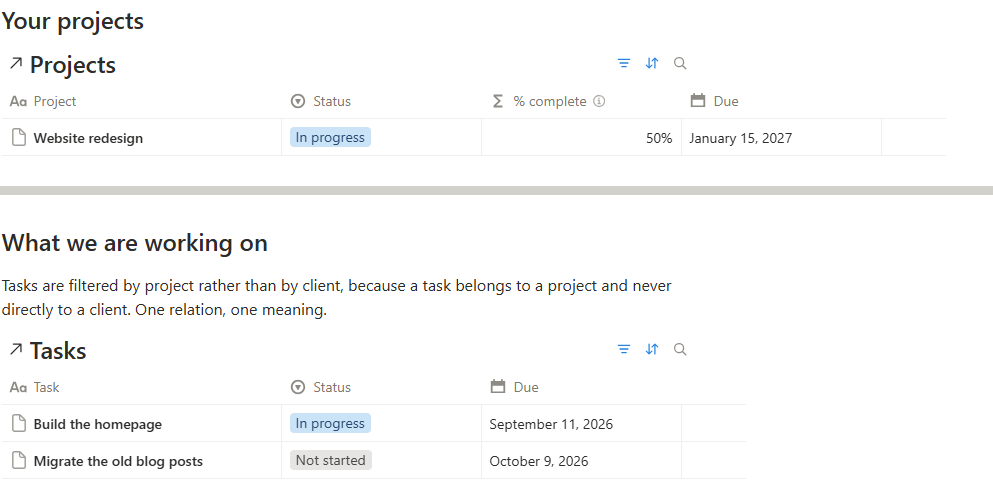
Here is what that check returned on the system I tested. All four databases came back with new identifiers. The client portal page, which is three filtered views with one per database, pointed at the copy in all three cases. Notion had also rewritten the filters themselves: a filter that said only rows belonging to this client had been re-aimed at the copy’s version of that client rather than the original’s. Each view still showed one client’s records and nothing belonging to any other.
That result is worth stating plainly because it contradicts the warning. Linked views and relation filters did survive. If you have avoided building with linked views because you read that they break on duplication, that caution is out of date.
What actually broke
Two things, and neither one appears in any warning list I have read.
A chart does not render on a published page on the free plan. Notion’s own documentation says the free plan allows one chart, and mine was the only chart in the entire workspace, yet the editor still reported the allowance as used. Emptying the trash did not release it. Worse than the editor message: a logged-out visitor to the published page saw no chart and no explanation either, just a tab with a name on it that opened onto nothing.
The fix was not to argue with it. I removed the chart and answered the same question two other ways that work on every plan: a sum under the table for the total, and a calculated column on the client record for who owes it. If you are choosing a template for a free workspace, treat any advertised chart as something to verify rather than assume.
The intake form collected one field out of three. The form that lets a client send in a request was supposed to capture the request, the project it belongs to, and a due date. It captured only the request. A submitted request therefore arrived attached to no project, which meant it could never appear in the per-client view the page advertised.
That was not a duplication failure. It was wrong in the original, and the copy reproduced it faithfully. Duplication tests catch that kind of thing as a side effect, and that is half of what they are for.
Three traps in the checking itself
Wait before you call a block empty. Notion loads database blocks lazily. Three separate times on one page I looked at a table with headers and no rows and nearly wrote it up as broken. Several seconds later the rows appeared. Never judge a page from one look.
Do not judge default views from your own account. Notion remembers which tab you last opened, per person. The template that opens on the mobile view for you may open on a wide table for everyone else, because you are seeing your own history rather than the template’s setting. A fresh duplicate is a better test surface than a private window for exactly this reason: it carries none of your saved state.
Read the page as a stranger. A form set to members-only printed the workspace name on a public page, and the workspace name was a personal name, because that is what Notion generates by default. Renaming the workspace fixed it everywhere at once. Anything generated from account settings is worth reading with fresh eyes before you share a link.
If you are building rather than buying
The same list works in reverse, with one addition: write down what you checked and what came back, and put it where the buyer can read it.
That costs nothing once the test has been run, and it answers the question a buyer cannot otherwise answer. Not whether the template is pretty, but whether it will still work once it is theirs. I publish my own Notion templates on the official Notion Marketplace as Softstart, and the results of this test are written on the template page itself rather than claimed in the description.
If you are still assembling the system this test is meant to check, I wrote a step-by-step guide to how I organize my work in Notion starting from a single task database, which is the structure everything above is built on. And if you are weighing the paid tier before you build anything at all, my hands-on Notion AI review covers what the paid features actually do and who they now make sense for.
Frequently asked questions
Does duplicating a Notion template copy the data too?
Yes. A duplicate brings the example rows with it. Deleting them is the first thing worth doing, because a lot of templates only look complete while the sample data is in place.
Will relations break when I duplicate a template?
They can, but a well-built template should survive. In the test above every relation followed the copy. To check yours, open a row that references another database and confirm you land on a page inside your own workspace.
Why does a chart in a Notion template show an upgrade message?
The free plan allows one chart per workspace. If a chart exists anywhere in your workspace, another will not render, and on a published page it may show nothing at all rather than an explanation.
Is a duplicate as good a test as a second account?
For most questions it is better. A fresh copy carries none of your saved view state, so it shows you what a new person sees rather than what you left open. A second account is only necessary for testing sharing and guest permissions.
How long does the whole check take?
About fifteen minutes for all five, and under two minutes for the first two, which catch most of what goes wrong.