
What is workflow automation? In plain terms, it means letting software handle a repeatable business task — moving data, sending a notification, updating a record — without a person doing it manually each time. This guide explains what workflow automation actually is, in plain terms, before you evaluate any specific tool.
Table of Contents
What Workflow Automation Actually Means
At its core, workflow automation follows a simple pattern: a trigger happens (a form is submitted, a task moves to “Done,” an email arrives), and one or more actions fire automatically in response (a task is created, a notification is sent, a record is updated). You set the rule once; it runs every time the trigger occurs, without you doing anything.
A Simple, Concrete Example
Someone fills out your website’s contact form (trigger). Automatically: a new task is created in your project tool, that person is added to your email list’s welcome sequence, and you get a Slack notification. Three manual steps become zero, every single time someone fills out that form — not just once.
A Few Terms That Show Up in Every Tool
Every automation platform uses roughly the same vocabulary with slightly different names. Knowing these four terms makes any tool’s interface make sense within a few minutes:
| Term | What it means | What it looks like in most tools |
|---|---|---|
| Trigger | The event that starts the automation | “When a form is submitted…” / “When a task moves to Done…” |
| Action | What happens automatically in response | “…create a task” / “…send an email” / “…post to Slack” |
| Condition / filter | An optional check before the action runs | “Only if the deal value is over $500” |
| Multi-step / chain | Several actions firing off one trigger | Form submitted -> add to CRM -> send welcome email -> notify Slack |
Every workflow, regardless of platform, is built from combinations of just these four pieces. A ten-step “complex” automation is usually the same trigger-action pattern repeated, not a fundamentally different mechanism.
Building Your First Automation, Step by Step
Here is what actually setting one up looks like, using the contact-form example from earlier:
- Pick one trigger. Not five candidate triggers — one. “Someone submits the contact form” is specific enough to build.
- Pick one action. The absolute minimum useful response — usually “add this person to my email list” or “create a task with their details.”
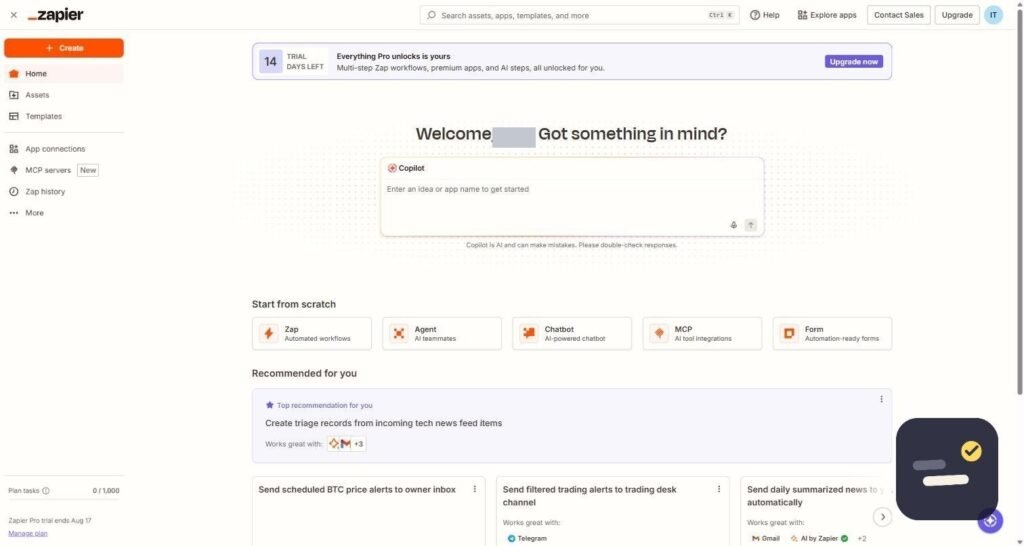
- Connect the two inside whichever tool you’re using (a connector like Zapier, or the automation panel built into your project or email tool).
- Test it with a real submission — not a preview button, an actual form fill from a second device or incognito window.
- Watch it run for a week before adding a second action. Most automations that fail do so quietly for weeks if nobody checks.
Only after that first pair is confirmed reliable does it make sense to add the second and third actions from the earlier example — the Slack notification, the task creation. Building all three simultaneously is exactly the mistake covered later in this guide.
What Is Workflow Automation in Practice: The Tools
- Connector tools (Zapier) — link separate apps together across companies. See our Zapier review
- Built-in automation (ClickUp, GetResponse) — automation rules inside a single platform, no external connector needed
- AI-assisted automation — newer tools that let you describe what you want in plain language instead of configuring triggers manually
Which Type of Automation Fits Your Situation
| Your situation | Best type | Example |
|---|---|---|
| Using several unrelated apps (form tool + CRM + Slack) | Connector tool | Zapier linking a form to a CRM |
| Everything happens inside one platform already | Built-in automation | ClickUp automatically reassigning a task on status change |
| You know the outcome but not the exact trigger/action steps | AI-assisted automation | Describing “notify me when a big deal closes” in plain language |
| A single repeated copy-paste between two specific apps | Connector tool, single zap | New form entry copied into a spreadsheet row |
When You Actually Need Workflow Automation
The honest signal is repetition, not busy-ness. If you’ve done the exact same manual step — the same copy-paste, the same follow-up message — more than three or four times, it’s a real automation candidate. If a task only happens occasionally or requires judgment each time, automating it usually creates more setup work than it saves.
Signs a Task Is Not Worth Automating Yet
Repetition is necessary but not sufficient. A few extra checks before building anything:
- It requires a judgment call each time. “Decide if this lead looks serious” is not a trigger-action pair — it needs a person, at least until you can define the judgment as a hard rule.
- It happens fewer than once a week. The time spent building and maintaining the automation can exceed the time it saves over a year.
- The steps keep changing. If the process itself is still evolving, automate it after it stabilizes, not while you are still figuring out the right sequence.
- Only you understand it. An automation nobody else can debug becomes a liability the day you are unavailable and it breaks.
None of this means wait indefinitely — it means automate the stable, repeated, rule-based parts first, and leave judgment calls to a person until the rule genuinely can be written down.
The Most Common Mistake Beginners Make
Trying to automate an entire process end-to-end on day one. Start with a single trigger-action pair, confirm it works reliably for a week, then add the next step. Workflow automation that’s built incrementally is far easier to debug than a ten-step chain built all at once. For a broader walkthrough, see our guide on how to automate your daily tasks with AI.
Frequently Asked Questions
Is workflow automation the same as AI?
No. Workflow automation is rule-based (if this happens, do that) and has existed for years. AI can make automation smarter or easier to set up, but the two are not the same thing.
Do I need to know how to code for workflow automation?
No. Tools like Zapier, ClickUp, and GetResponse are built for no-code use through visual trigger-and-action builders.
What’s a good first workflow to automate?
Something you do identically every time with no judgment involved — like adding new contacts to an email list, or creating a task when a form is submitted.
For a wider look at automation platforms and how they’re rated by real users, G2’s workflow automation category is a useful reference. Understanding what is workflow automation at a basic level makes it much easier to evaluate any specific tool, since you’ll know exactly which trigger-and-action pattern you’re looking for.
Once you understand what is workflow automation at a basic level, the next step is simply naming your own repetitive task out loud — the exact trigger and the exact action — before opening any tool. Teams that skip this step tend to build overly complex automations that break easily; teams that start with one clear, named pair tend to stick with automation long-term and expand from there gradually.